
Connections
AI Agent Management > Connections
Introduction
The Connections page of the AI Agent Management module is where you create, store and manage the credentials that let your AI Workflows act on your behalf in third-party applications. While these Connections can also be created within the AI Workflow Editor, they can only be centrally managed in the Connections page.
A Connection is a saved, encrypted authorization between ElectroNeek and an external app — for example, a link to your Gmail account, your Slack workspace, or your OpenAI key. Once a Connection exists, any AI Workflow can reuse it, so you only have to authenticate with each app once instead of re-entering credentials in every step.
To open it, navigate to AI Agent Management > Connections.
What is a Connection?
Connections are tied to Pieces — the connectors that AI Workflows use to integrate with apps. Whenever a Trigger or Action needs to access an app, it relies on a Connection to authenticate.
Key things to know:
- Created once, reused everywhere. A Connection you create in one flow is immediately available to every other flow in your project. You don't need a separate Connection per workflow.
- One app can have several Connections. For example, you can connect two (or more) different Gmail accounts and pick the right one in each step.
- Credentials are stored securely. Connection data is validated when you save it and stored encrypted. For OAuth-based apps, ElectroNeek automatically refreshes expired tokens in the background so your flows keep running.
Connection (authentication) types
The fields you fill in when creating a Connection depend on how the app's Piece authenticates. The most common types are:
- OAuth2 — You authorize ElectroNeek through the app's own login and consent screen (a popup window). You don't handle any keys yourself; the app grants access and ElectroNeek manages the tokens (including automatic refresh). Used by most major apps, such as Gmail, Google Sheets, Slack, and Microsoft Outlook.
- API Key / Secret Text — You paste a single secret value, such as an API key or access token, into a masked field. Common for AI providers and developer-focused apps.
- Basic Auth — You enter a username and password as two separate fields.
- Custom Auth — You provide several specific values that the app requires, such as a base URL plus an API token. Used by apps with non-standard authentication.
- No Auth — Some Pieces don't require any credentials at all, so no Connection is needed.
As with any step properties, required Connection fields are marked with an asterisk (*). Follow the on-screen instructions for the specific app — many Pieces include a short tooltip explaining where to find an API key or what permissions are needed.
Creating a Connection
There are two ways to create a Connection.
From within a flow step
This is the most common path, and it happens automatically as you build a flow:
- Add or open a step (Trigger or Action) whose Piece requires a Connection.
- In the step's properties, the Connection field appears first. Click it and select an existing Connection, or click Create Connection.
- Give the Connection a clear name, then follow the on-screen steps:
- For OAuth2, a popup opens where you log in to the app and approve access.
- For API Key, Basic Auth, or Custom Auth, fill in the required fields.
- Click Save. The Connection is now selected for this step and added to your Connections page.
From the Connections page
You can also manage Connections centrally, without opening a flow:
- Navigate to AI Agent Management > Connections.
- Click New Connection.
- Choose the app you want to connect.
- Name the Connection, complete the authentication, and click Save.
Give each Connection a descriptive name — especially when you connect more than one account for the same app (for example, "Gmail – Support Inbox" vs. "Gmail – Sales"). A clear name makes it much easier to pick the correct Connection in each step.
Managing Connections
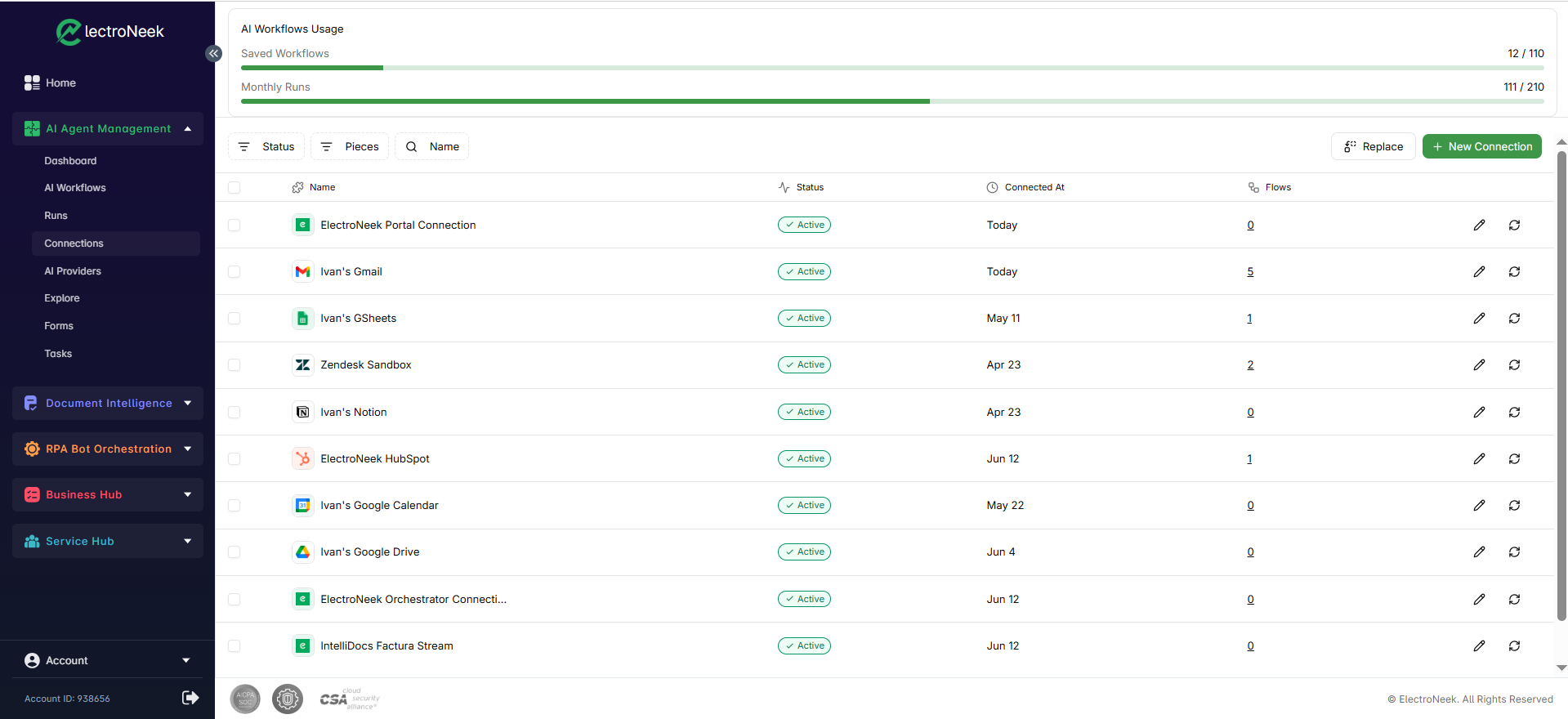
The Connections page lists all of the Connections in your project in a table with the following columns:
- Name: The display name you gave the Connection, shown together with the app's icon.
- Status: The health of the Connection — Active, Missing or Error (see below).
- Connected At: When the Connection was created.
- Flows: The number of AI Workflows that currently use this Connection (the number links through to those flows). Check it before editing or deleting a Connection to see what depends on it.
A toolbar above the table helps you find and manage Connections:
- Name — search for a Connection by name.
- Status — filter by status (Active, Missing or Error).
- Pieces — filter by the app the Connection is for.
- Replace — swap one Connection for another everywhere it is used. This is handy when you want every flow that relies on one account to switch over to a different one.
- New Connection — add a Connection directly from this page (see Creating a Connection above).
Each row also has action icons on the right:
- Edit (pencil icon) — rename the Connection or update its stored credentials.
- Reconnect (refresh icon) — re-run the authentication to refresh the Connection. Use this when its status is Missing or Error.
You can select Connections using the checkboxes on the left of each row. To remove a Connection you no longer need, delete it — but check the Flows column first.
Connection status
Each Connection shows one of three statuses:
- Active — The Connection is authenticated and working normally.
- Missing — The Connection is incomplete: its credentials were never finished or are no longer available (for example, authentication was started but not completed). Set it up or Reconnect it before using it in a flow.
- Error — The Connection can no longer authenticate — for example, the password changed, the token was revoked, or access was withdrawn in the app. Flows that depend on it will fail until you Reconnect it.
Deleting a Connection that is still in use will cause the steps that reference it — and therefore their flows — to fail. The Flows column shows how many workflows currently depend on a Connection; make sure it is safe to remove before deleting, or use Replace to move those flows to a different Connection first.
Using your own OAuth2 credentials (advanced)
By default, OAuth2 Connections use ElectroNeek's pre-configured app credentials, so you can connect instantly with no setup. For some apps you may prefer to supply your own OAuth2 credentials (a Client ID and Client Secret generated in the app's developer console). Reasons to do this include:
- Branding — Your own company name appears on the app's consent screen instead of the default.
- Higher rate limits — Dedicated credentials avoid the shared limits of the default app.
- Compliance — Some organizations require automations to use company-owned credentials.
Configuring custom OAuth2 credentials is a platform-level task (done by an administrator), where you enter the Client ID and Client Secret for a specific app and use the provided redirect URL when registering the app on the provider's side.
Security
- Connection credentials are validated when you save them, so you find out immediately if something is wrong.
- All sensitive data is stored encrypted at rest.
- For OAuth2 Connections, access tokens are refreshed automatically, so you rarely need to reconnect unless access is revoked on the app's side.
Connections power the steps you build in AI Workflows. To connect an AI model specifically (such as for AI Actions), see AI Providers. To monitor the executions that use your Connections, see Runs.