
AI Providers
AI Agent Management > AI Providers
Introduction
The AI Providers page of the AI Agent Management module is where you set the provider credentials that power the universal AI pieces in your AI Workflows — for example, the Ask AI and Run Agent Actions.
Instead of entering an API key inside every AI step you build, you configure each AI provider once on this page. From then on, any universal AI step in any flow can use that provider, without setting up a separate connection each time.
To open it, navigate to AI Agent Management > AI Providers.
What are universal AI pieces?
Most Pieces connect to a single app. Universal AI pieces are different: they let your flows send a request to an AI model — to generate text, classify, summarize, or extract data — without being tied to one specific provider's piece or connection.
For a universal AI step to work, it needs credentials for at least one AI provider. The AI Providers page is where those credentials live. Configure a provider here, and it becomes available to every universal AI step across all of your flows.
Connections authenticate ordinary app Pieces (Gmail, Slack, and so on). AI Providers specifically power the universal AI pieces and let them switch between models and providers. The two are managed separately — setting an OpenAI key here does not create a Connection, and vice versa.
Supported AI Providers
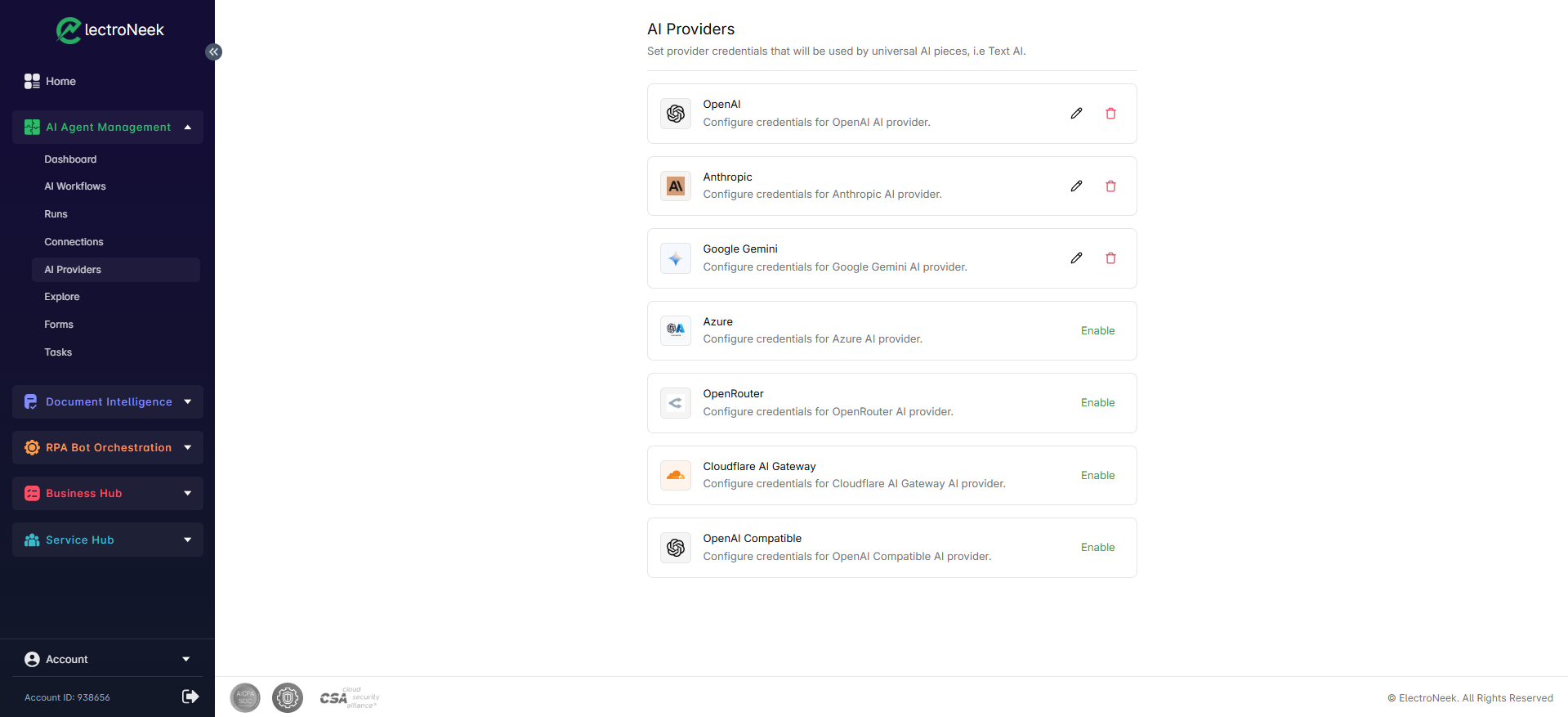
The AI Providers page lists every provider you can enable. Each card shows the provider's name and a short description ("Configure credentials for … AI provider"). The available providers are:
- OpenAI
- Anthropic
- Google Gemini
- Azure (Azure OpenAI)
- OpenRouter
- Cloudflare AI Gateway
- OpenAI Compatible
OpenRouter, Cloudflare AI Gateway, and OpenAI Compatible are gateway / compatibility options. They let you route requests to a wide range of models — including third-party, self-hosted, or proxied endpoints — and, in the case of gateways, add controls such as rate limiting, budget caps, and request logging on top of your AI usage.
The gateway / compatibility options provided, as described above, allow access to AI providers not explicitly listed above. Some of these gateways rely on external services, such as OpenRouter, but the OpenAI Compatible option allows you to connect any LLM that shares OpenAI's REST API structure, regardless of where they are hosted (you can even host these models on your own infrastructure.) Some popular OpenAI Compatible LLMs include xAI, DeepSeek, LLaMa and Mistral, among many others.
Enabling an AI Provider
To make a provider available to your flows:
- Navigate to AI Agent Management > AI Providers.
- Find the provider you want and click Enable.
- Enter the required credentials:
- For OpenAI, Anthropic, and Google Gemini, this is the provider's API key.
- For Azure, OpenRouter, Cloudflare AI Gateway, and OpenAI Compatible, you also provide a base URL / endpoint that points to your resource or gateway, in addition to the API key.
- Save. The provider is now enabled and ready to be used by universal AI steps in your flows.
Each key is generated in the provider's own console — for example, the OpenAI platform dashboard, the Anthropic console, or Google AI Studio. For gateways and "OpenAI Compatible" endpoints, you also need the endpoint URL provided by that service.
Editing or removing an AI Provider
Once a provider has been enabled, its card shows two icons:
- Edit (pencil icon) — update the stored credentials. Use this when you rotate or replace an API key, or need to change a base URL.
- Delete (trash icon) — remove the provider's credentials and disable it.
Providers that have not been configured yet show the Enable option instead.
Any universal AI steps set to use that provider will stop working until you enable it again (or switch those steps to a different provider).
Using an AI Provider in your AI Workflows
After a provider is enabled, you can use it in the AI Workflow Editor:
- Add a universal AI step, such as Ask AI or Run Agent, to your flow.
- Select the provider and model you want the step to use.
- Configure the prompt and any other properties, then test the step.
Because the credentials are stored centrally on the AI Providers page, the step uses them automatically — there's no per-step API key to fill in.
Security
AI Provider credentials are stored encrypted and are used server-side when your flows run. They are not exposed in the flow editor or in run logs, so builders can use AI in their workflows without ever handling the underlying keys.