
Variables
AI Agent Management > AI Workflows > Variables
Introduction
The Variables page of AI Workflows is where you store values that several flows need, such as API keys, base URLs, IDs or email addresses. Instead of typing the same value into every step, you save it once as a Variable and use it in any flow.
To open it, navigate to AI Agent Management > AI Workflows > Variables.
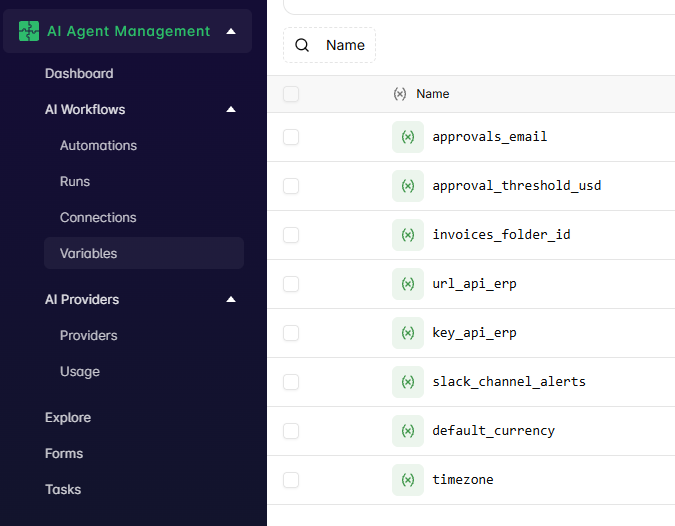
Create a Variable
- Go to AI Agent Management > AI Workflows > Variables.
- Click New variable.
- Enter a Name and a Value.
- Click Save.
You can also create a Variable while you build a flow, from the Variables tab of the Data Selector.
Each Variable needs a unique name. If a Variable with the same name already exists, it isn't saved, so no two flows can read different values under the same name.
Use names that describe what the value is for, for example crm_api_key or invoices_folder_id.
Values are encrypted
Variable values are stored encrypted, and nobody can see them after they're saved, not even the person who created them. The Variables list shows only each Variable's name and when it was last updated. This keeps keys and other sensitive values from being exposed.
Keep a copy of the value somewhere safe if you'll need it outside ElectroNeek. You can replace a value, but you can't read it back.
Edit or delete a Variable
Open the menu (three dots) next to a Variable in the list:
- Edit: opens the Variable. To replace its value, click Rotate value, enter the new value and click Save new value. Use the eye icon to check what you typed before saving. The name can't be changed.
- Copy reference: copies the Variable's reference, so you can paste it into a step.
- Delete: removes the Variable.
A new value applies to every flow that uses the Variable from its next run.
Before deleting a Variable, make sure no published flow still uses it.
Use a Variable in a flow
In any step of the AI Workflow Editor, open the Data Selector, go to its Variables tab and pick the Variable you need. Use the search box to find it by name. The step reads the current value of the Variable each time the flow runs.