
Explore
AI Agent Management > Explore
Introduction
The Explore page of the AI Agent Management module is a gallery of ready-made AI Workflow templates. Instead of building an automation from scratch, you can start from a pre-built template that already has its Trigger, Actions and logic in place — then customize it for your own accounts and data.
To open it, navigate to AI Agent Management > Explore.
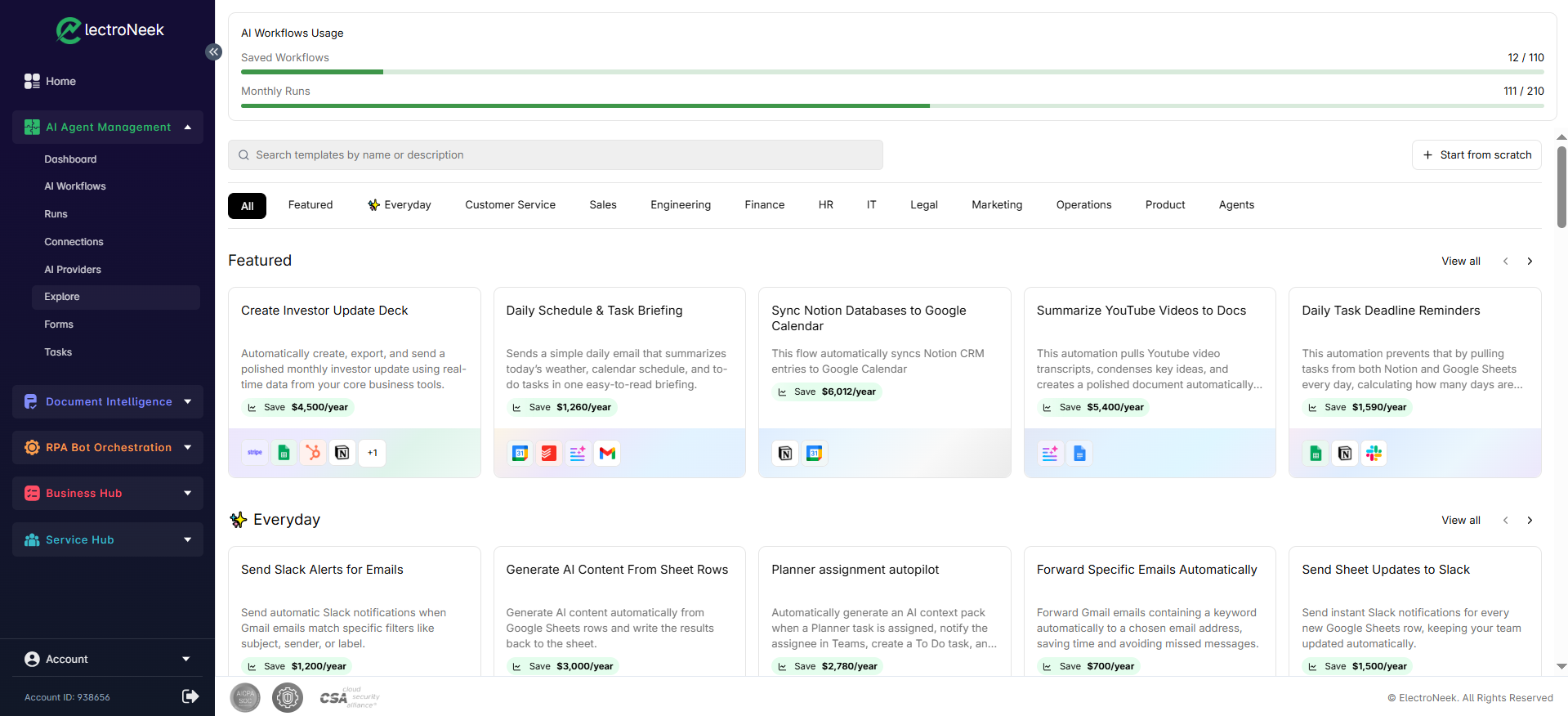
Browsing templates
There are several ways to find a template:
- Search — use the search bar to find templates by name or description.
- Categories — use the category tabs to filter the gallery. Available categories include All, Featured, Everyday, Customer Service, Sales, Engineering, Finance, HR, IT, Legal, Marketing, Operations, Product, and Agents.
- Sections — templates are grouped into rows such as Featured and Everyday. Each row has a View all link and left/right arrows to scroll through more templates.
If you'd prefer not to use a template, click Start from scratch to create an empty AI Workflow and build it yourself in the AI Workflow editor.
Template cards
Each template is shown as a card that gives you a quick summary at a glance:
- Title — the name of the template.
- Description — a short explanation of what the automation does.
- Estimated savings — an estimate of the value the automation can deliver, shown as Save $X/year.
- Used apps — the icons of the apps and Pieces the template relies on (with a +N badge when there are more than fit on the card).
Previewing a template
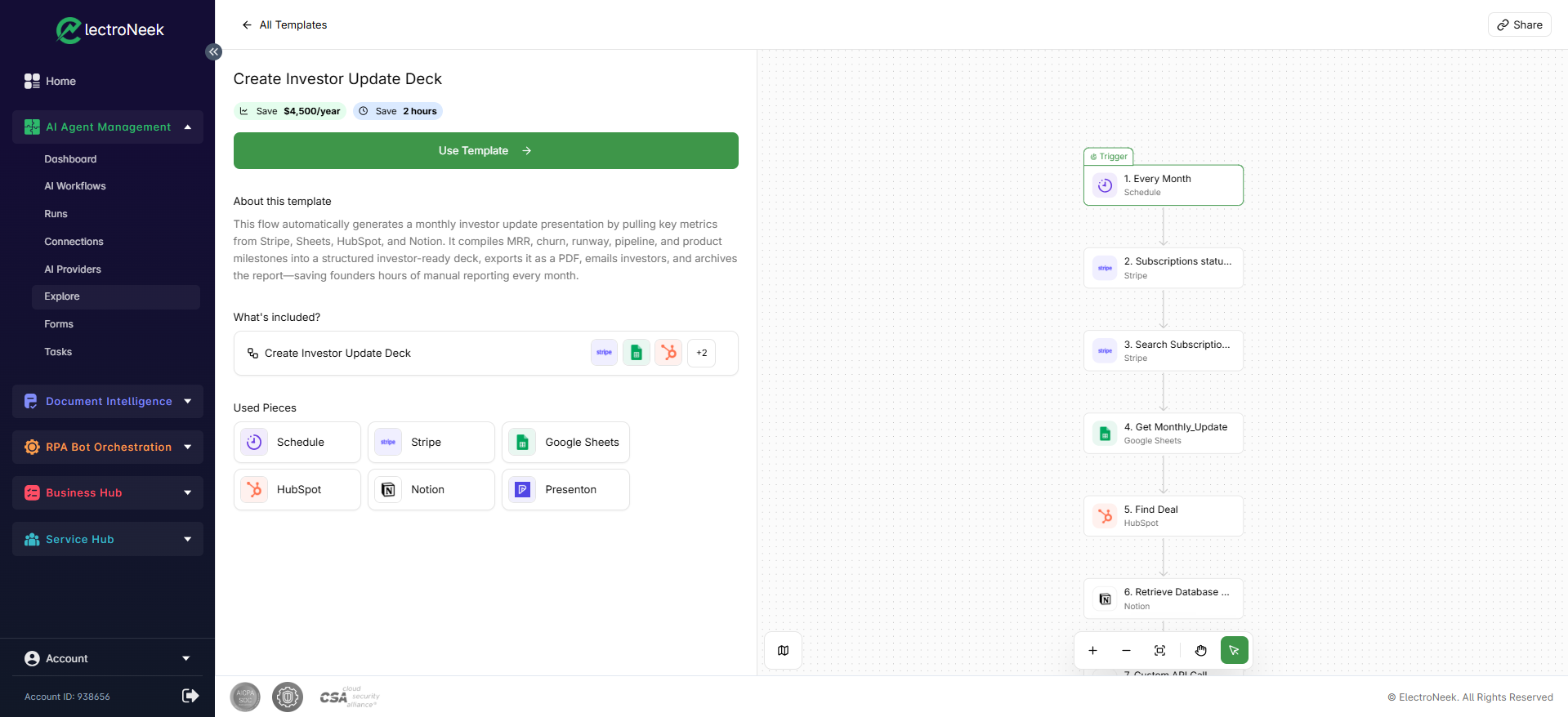
Click a template card to open its detail page, where you can review everything about it before using it:
- Savings badges — the estimated Save $X/year and Save N hours value of the automation.
- About this template — a full description of what the flow does, step by step.
- What's included? — the workflow (or workflows) bundled in the template.
- Used Pieces — every app and connector the template uses — for example, Schedule, Stripe, Google Sheets, HubSpot, Notion, and Presenton.
- Flow preview — a read-only view of the flow on the right side of the screen, showing each step (the Trigger followed by every Action) exactly as it will be created.
- Share — copy a link to share the template with others.
- All Templates — the back link that returns you to the gallery.
Using a template
When you've found a template you want, turn it into a working AI Workflow:
- Open the template and review the flow preview and Used Pieces so you know which apps you'll need.
- Click Use Template. A new AI Workflow is created in your account as an editable copy of the template.
- In the AI Workflow editor, customize the flow for your needs:
- Set up a Connection for each app the template uses.
- For AI steps, make sure the relevant model is configured on the AI Providers page.
- Adjust the step properties — schedules, prompts, filters and field values — to match your data.
- Add or remove steps as needed.
- Test the flow and then Publish it to start producing live Runs.
Use Template simply creates an editable copy of the flow in your account. Nothing executes until you have set up its Connections, finished customizing it, and Published it. The Save $X/year and Save N hours figures are estimates provided with each template, not guarantees.