
Runs
AI Agent Management > Runs
Introduction
The Runs page of the AI Agent Management module is where you monitor and troubleshoot every execution of your team's AI Workflows. A Run is a single execution of a published flow: each time a flow's Trigger fires, a new Run is created and recorded here.
While the AI Workflows editor lets you see the recent runs of one specific flow, the Runs page gives you a centralized, project-wide view of all runs across all of your flows — making it the main place to confirm your automations are working as expected and to debug them when they aren't.
To open it, navigate to AI Agent Management > Runs.
The Runs list
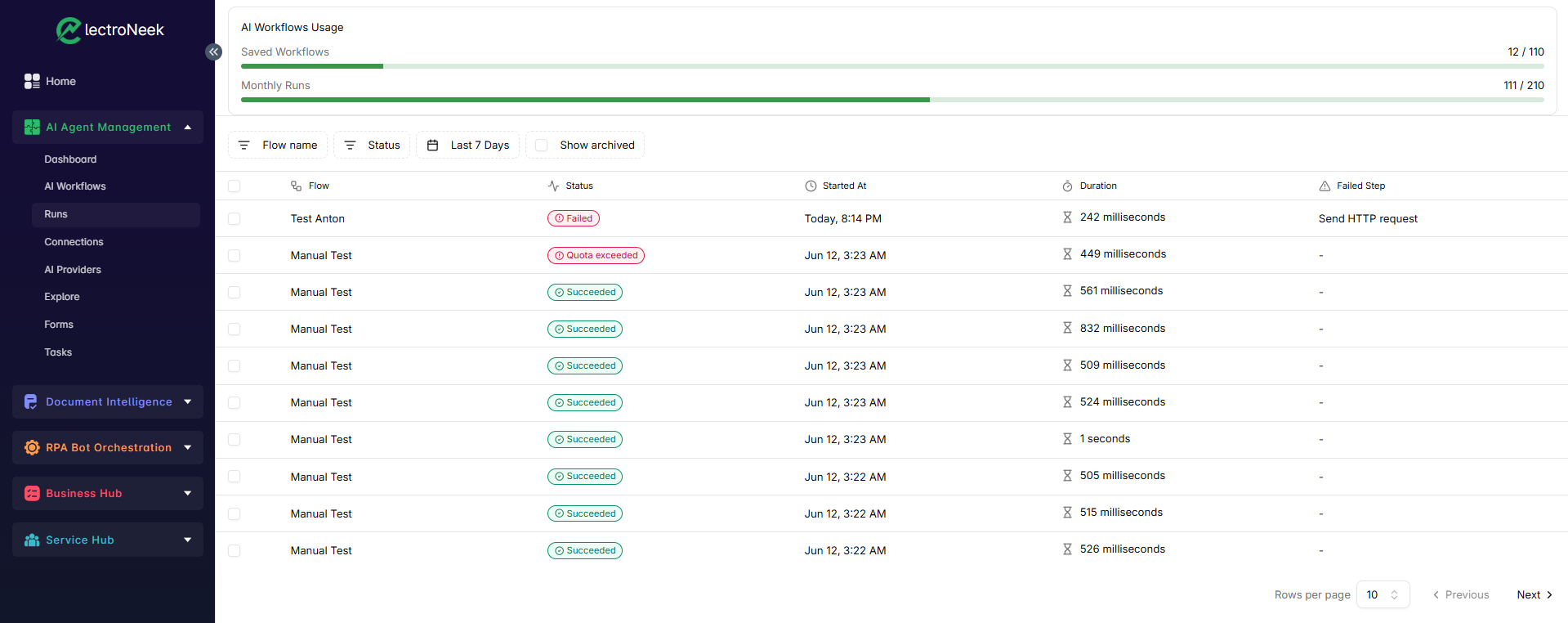
The Runs page displays all of your executions in a table. Each row is a single Run and shows, at a glance:
- Flow: The name of the AI Workflow that was executed.
- Status: The outcome of the Run (see Run statuses below).
- Started At: The date and time the Run began.
- Duration: How long the Run took to finish.
- Failed Step: The step at which the Run failed, when applicable. Runs that didn't fail on a specific step show a dash (-).
You can select runs using the checkboxes on the left of each row. The most recent runs appear at the top, and the list includes a Rows per page selector together with Previous / Next buttons, so you can browse through large execution histories.
Run statuses
The Status column — and the Status filter — use the following values:
| Status | Meaning |
|---|---|
| Succeeded | The flow ran from start to finish and every step completed without error. |
| Running | The flow is currently executing and has not finished yet. |
| Paused | The flow is waiting — for example, on a Delay step or a pending Approval. It resumes automatically once the wait condition is met. |
| Failed | A step in the flow returned an error and the Run could not be completed. These are the runs you will most often want to inspect. |
| Canceled | The Run was stopped before it finished. |
| Quota Exceeded | The Run could not proceed because there are no AI Workflow Runs available in the current period. You may contact Sales to increase your limit. |
| Timeout | The Run exceeded the maximum allowed execution time and was halted. You may contact Support for details. |
| Queued | The Run is waiting in the queue to start — for example, when other runs are executing ahead of it. You may contact Support for details. |
| Internal Error | The Run failed due to an unexpected system error rather than a problem inside the flow itself. You may contact Support for details. |
| Memory Limit Exceeded | The Run used more memory than the allowed limit and was halted. You may contact Support for details. |
| Log Size Exceeded | The Run produced more log data than the allowed limit and was halted. You may contact Support for details. |
Filtering runs
A toolbar above the table lets you narrow the list down:
- Flow name: Show only the runs of a particular AI Workflow.
- Status: Show only runs with a particular outcome — for instance, only Failed runs when you're troubleshooting.
- Date range (set to Last 7 Days by default): Restrict the list to runs that started within a given time period.
- Show archived: Tick this checkbox to also include archived runs in the list.
Combine filters to drill down — for example, all Failed runs of a specific flow in the last 7 days.
Inspecting a Run
To dig into what happened during an execution, click on any Run in the list. This opens the flow in the AI Workflow Editor in view-only mode, showing the exact version of the flow that was executed. A banner at the top summarizes the Run — for example, "Run Succeeded - Started: Jun 12, 2026, 3:23 AM, Took: 832 milliseconds" — along with an Edit flow button if you want to switch over to editing the workflow.
In this read-only view, each step displays:
- A Succeeded (green) or Failed (red) status badge, so you can immediately see where in the flow a problem occurred.
- The execution time of that step (for example, 263 ms).
Click on any step to open its details panel on the right, where you can review the step's properties and switch between two tabs:
- Input — the exact data the step received.
- Output — the exact data the step produced, or the error message if it failed (for example, a
TypeError: Invalid URL). - Timeline — available only for Run Agent steps. Displays the entire thought process of an AI Agent.
Inspecting the input and output of each step is the fastest way to understand why a Run failed — for example, spotting a missing field, an unexpected value, or a connection/authentication error returned by an app.
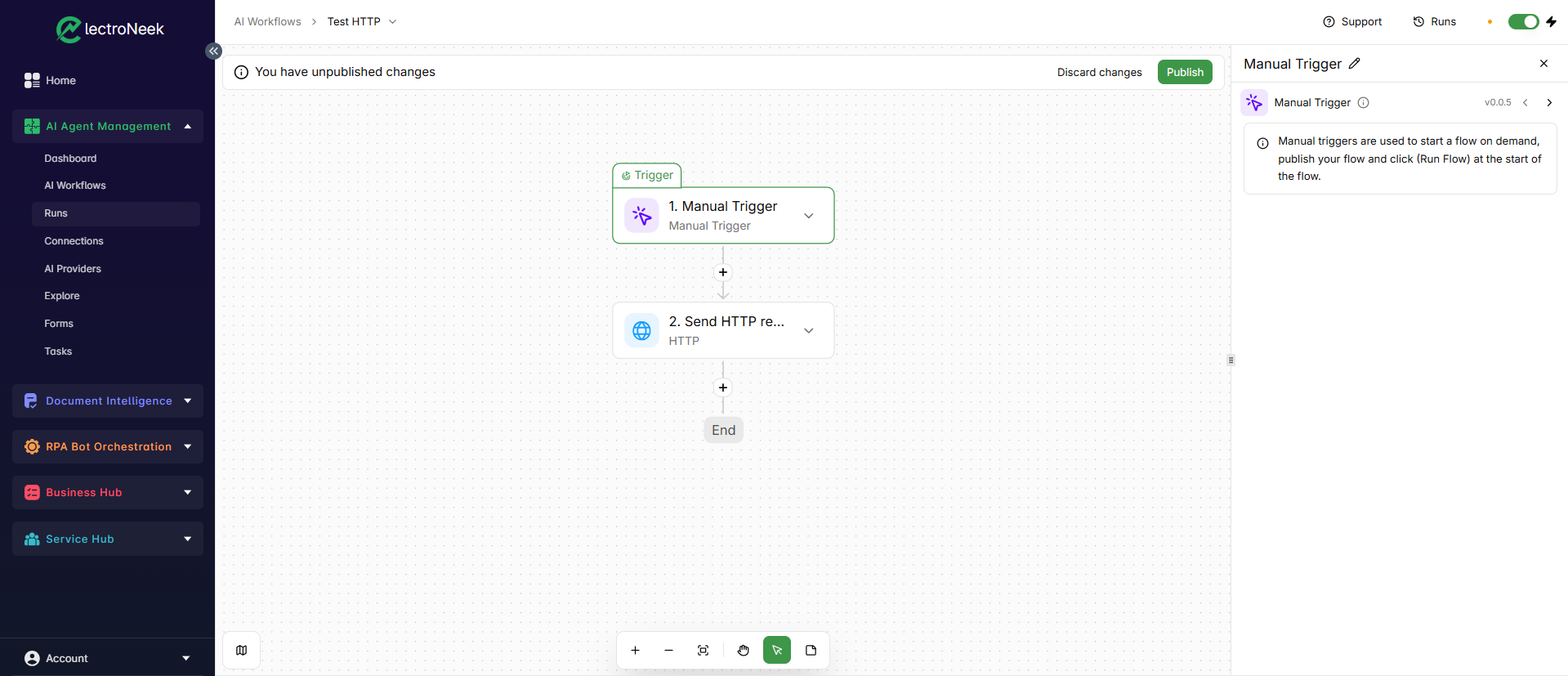
The Runs page records live executions of published flows. While you are still building a flow, use the Test Step and Test Flow buttons in the editor instead — those tests don't appear as Runs here. See the AI Workflows page for details on testing and publishing.