
CRM
Partner Hub > CRM
Overview
Partner Hub is where partners run their ElectroNeek business from the Portal. It includes the CRM, Lead Center, White Label and Playbooks.
The CRM keeps your clients and deals in one place and links each deal to the ElectroNeek products it involves. From it you can also request quotes from ElectroNeek Sales and register resale opportunities. It replaces the Resell form and the Lead Center CRM tab.
To open it, go to Partner Hub > CRM in the Portal. The CRM has two tabs: Deals and Clients.
Deals
Board and list
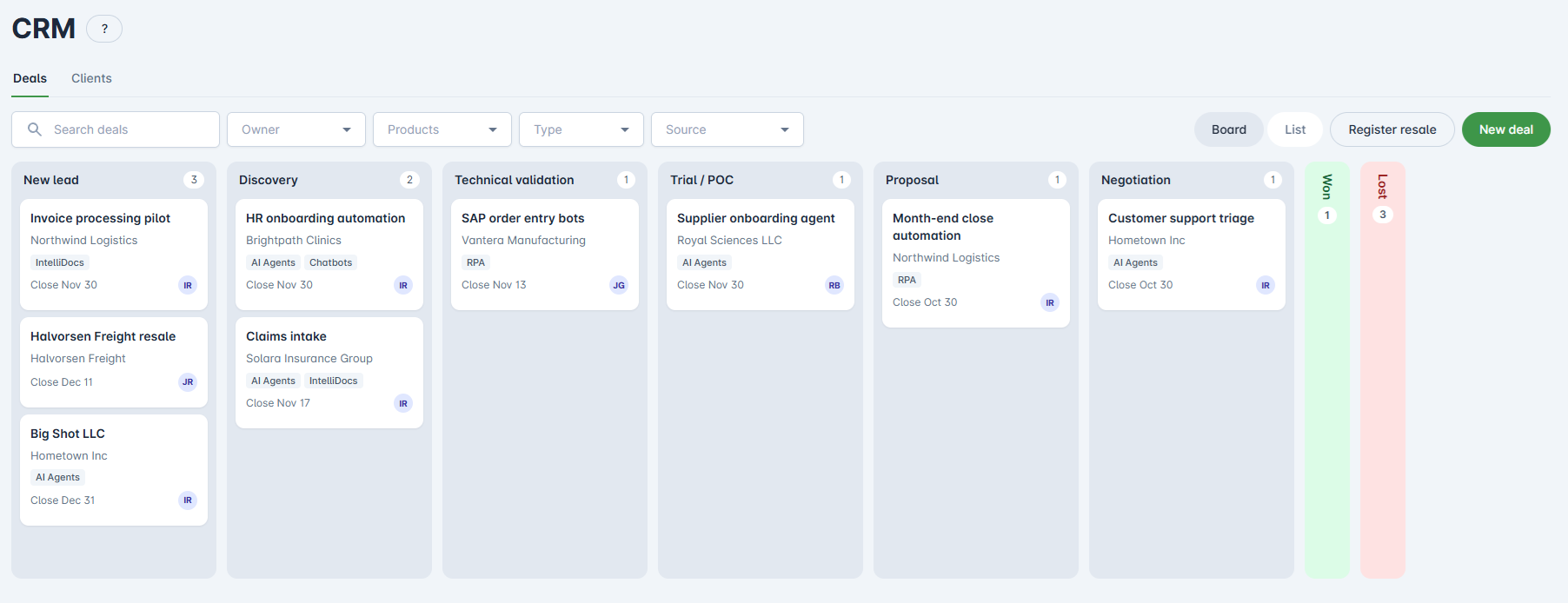
The Deals tab opens on a board with one column per stage. Drag a card to another column to change its stage. Each card shows the deal's title, client, products, expected close date and owner, plus a badge when the deal came from Lead Center, an imported resell or a resale registration. The Won and Lost columns start collapsed and show only how many deals they hold.
Switch to the list view to see every deal in a table, sorted by any column. In both views you can search and filter by owner, product, type and source.
Stages
Deals move through these stages:
- New lead
- Discovery
- Technical validation
- Trial / POC
- Proposal
- Negotiation
- Won
- Lost
Create a deal
- Click New deal.
- Enter a title and pick a client, or create one from the same form.
- Optionally, pick a contact.
- Choose the ElectroNeek products, the type (Services, the default, or Resale), the expected close date and the owner. The owner is you by default.
- Save the deal. New deals start in New lead.
The deal page
Click a deal to open it. The header shows its title, client, stage and owner, and the Request a quote button. Below are the deal's details and the client's contacts, and a timeline with the newest entries first. Add notes to the timeline at any time. Stage changes and quote requests are added to it automatically.
Request a quote
From a deal, click Request a quote to ask ElectroNeek Sales for pricing. The deal's type sets what the quote is for: a license for your client on Resale deals, or add-ons for your own license on Services deals.
Check the products, describe what's needed and, optionally, add a desired start date and notes for our Sales team. When you send it, ElectroNeek Sales receives your request with the deal and client details, and a "Quote requested" entry is added to the deal's timeline.
Register resale
Use Register resale to tell us about a resale opportunity. It replaces the Resell form. Click it next to New deal, or on a client's page.
The registration has the same four steps as the Resell form: project details, end user details, deal details, and a review before you submit. The CRM fills in what it already knows about the client, the contact and you.
When you submit it, ElectroNeek Sales receives the registration, and the CRM creates a Resale deal for the client in New lead. Products are added to that deal once the case has been discussed with ElectroNeek. The registration is listed on the client's page.
Clients
The Clients tab lists your clients with their country, open and won deals, and owner. Click New client to add one: company name, country and owner are required, the rest is optional.
A client's page shows its company details, contacts, deals and registered resales. Add, edit or remove contacts from there.
Lead Center deals
If your organization uses Lead Center, its deals were moved to the CRM and show a Lead Center badge. Every lead you unlock from now on is added to the CRM as a client, a contact and a deal in New lead.
First use
The first time you open the CRM, a short tour shows you around. You can open it again from the help button.
If your organization registered resells with ElectroNeek in the past, the tour offers to import them as Won deals. Importing is optional, and importing again doesn't add the same resells twice.
Access
Owners and Admins have access to the CRM automatically. Other users need the CRM permission, in the Partner Hub tab of Edit User (see User Access Management). Users who had the Resell permission now have the CRM permission.
Questions about Partner Hub or getting access? Reach out through the Support Center or at success@electroneek.com.