
Chatbots
AI Agent Management > Chatbots
Overview
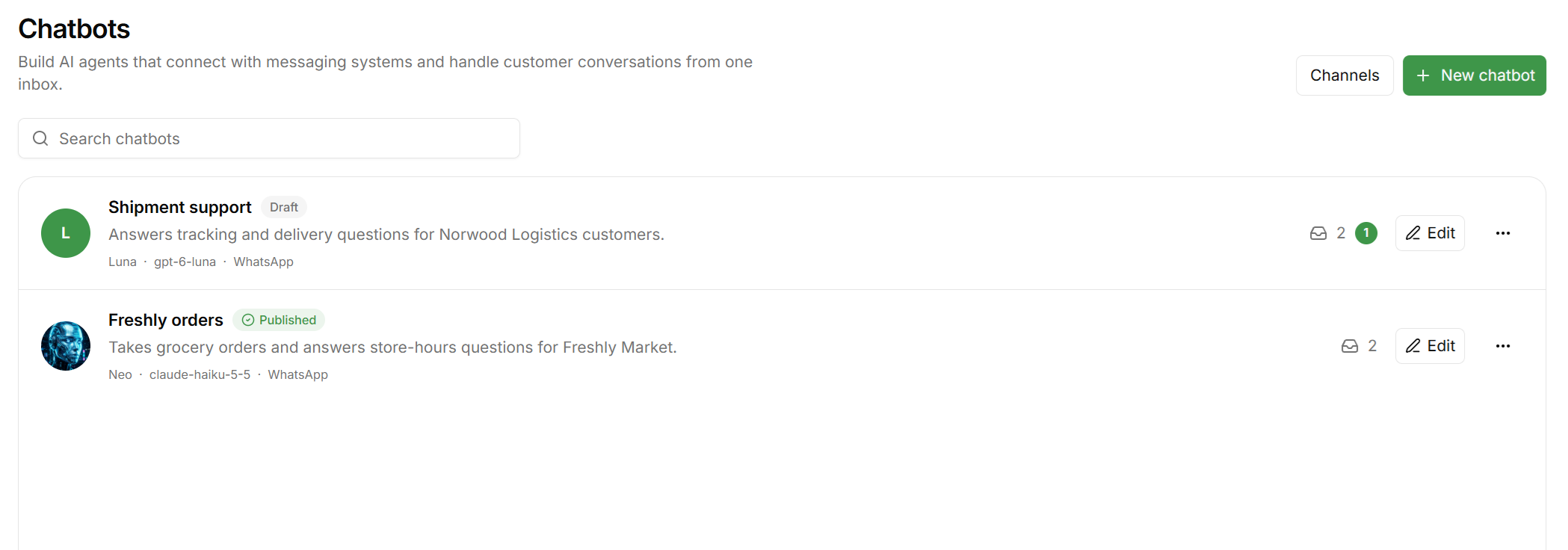
Chatbots lets you put AI agents in front of your customers on WhatsApp. Each chatbot has its own model, instructions and tools. It answers the messages that reach your WhatsApp Business number, remembers the conversation and what it has learned about each contact, and hands the chat to a person when it needs to.
Chatbots has three parts:
- Home: create, edit and publish your chatbots, and open the Inbox of each one.
- Channels: connect your WhatsApp Business numbers and organize them in groups.
- Conversations: read and answer chats in the Inbox, take over from the AI and give chats back.
Chatbots is a separate product in AI Agent Management, and it isn't included in AI Workflows. To activate it for your organization, contact your account manager.
Getting started
What you need
- The AI Chatbots product active in your organization. It sets how many chatbots you can create and how many messages they can send each month. See Limits.
- An AI Chatbots role. Admins and Managers create and edit chatbots; Admins and Agents reply in the Inbox. See Roles.
- A WhatsApp Business number connected as a channel.
- An AI model. Use one of your AI Providers, or ElectroNeek AI (see Intelligence).
After an administrator assigns your role, sign out and back in to the Portal so it takes effect.
Create a chatbot
- Go to AI Agent Management > Chatbots and click New chatbot.
- Complete the four steps of the wizard: Basics, Intelligence, Channel & Identity and Review. Each step is described below.
- On Review, under Save status, choose whether to publish now:
- Select Publish to channels and click Create & publish to make it live.
- Select Save draft and click Create draft to keep the chatbot offline until its channels are ready.
Chatbot settings
Basics
- Name: how your team finds the chatbot in Chatbots. Customers don't see it.
- Brief description: what this chatbot is for, in one line. It's a note for your team, not part of the instructions.
Intelligence
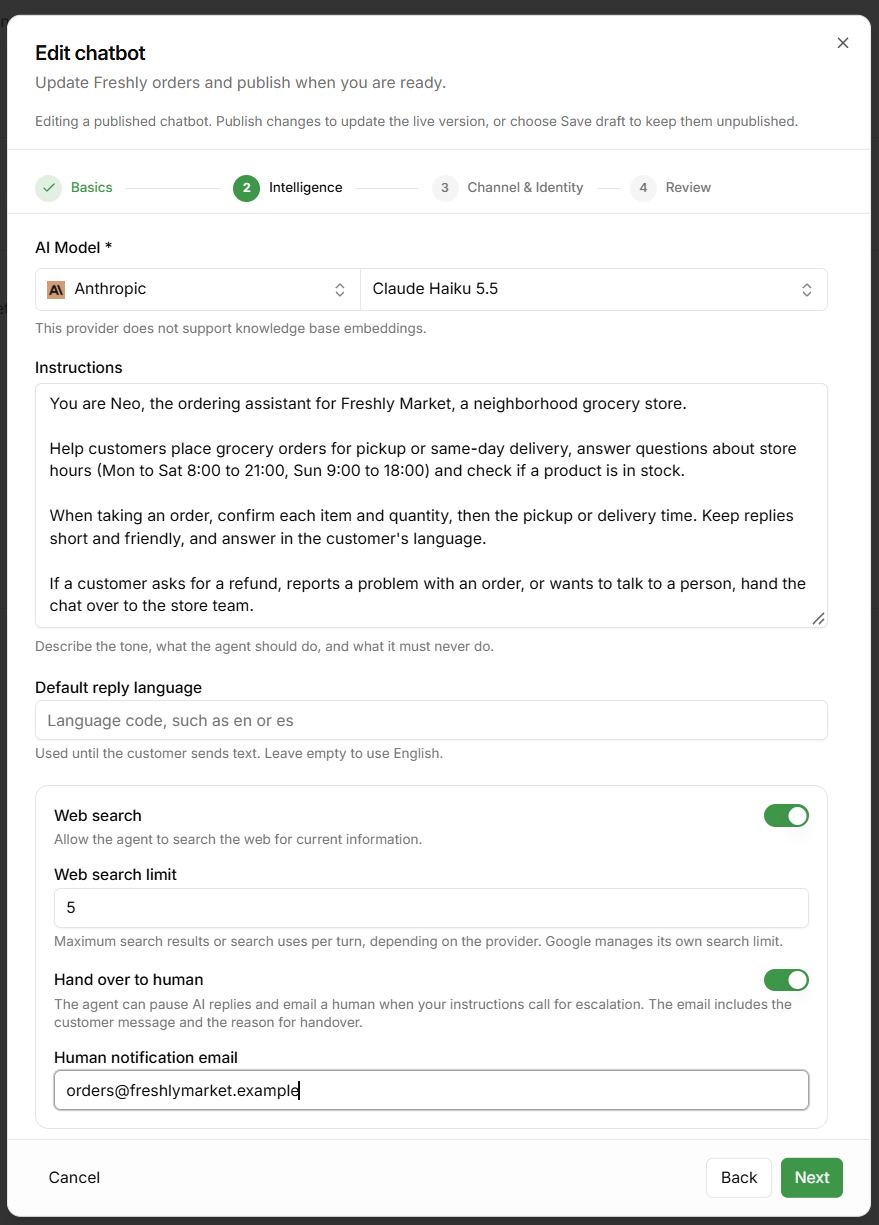
- AI Model: the AI provider and model that writes the replies, chosen the same way as in a Run Agent step. You can use any of your AI Providers, or ElectroNeek AI, our managed option that needs no API key. ElectroNeek AI will be available as an add-on starting December 2026.
- Instructions: the prompt that tells the chatbot who it is, what it can help with and how to answer. For example: "You are a friendly support agent for Norwood Logistics. Help customers track their shipments..."
- Tools: pieces, flows and MCP servers the chatbot can use, as in a Run Agent step. A chatbot runs without a person approving each step, so once you add tools, check Allow the agent to use these tools automatically before you publish.
- Web search: lets the chatbot search the web when the model supports it. It isn't available with ElectroNeek AI. Web search limit sets the maximum results or searches per reply (1 to 10, 5 by default).
- Hand over to human: lets the chatbot pass a chat to your team when your instructions say so, for example when a customer asks for a refund. It switches the chat to a person, tells the customer, and sends an email to the Human notification email address with the customer's message and the reason.
- Contact memory fields: facts you want the chatbot to remember about each contact, such as their company size. For each field, set a Display name, a Key, a Description of what the agent should capture, and a Type. Your team sees these facts in the Inbox.
- Default reply language: the language it uses until the customer sends text, such as
enores. Empty means English. After that, it replies in the customer's language.
Channel & Identity
- Subscribe to Channels: the channels this chatbot listens to. Each subscribed channel has a switch: Listening answers new messages, Paused keeps recording them without replying. Changes to subscriptions apply as soon as you save, even on a published chatbot.
- Agent name: the name the chatbot uses when it introduces itself.
- Avatar: the chatbot's profile image (JPEG, PNG or WebP, up to 2 MB). Without one, the Inbox shows its initials.
Review
Check the summary and the number of channels the chatbot listens to, then save or publish.
Publishing and editing
A chatbot is either a Draft or published. Only a published chatbot replies to customers, and it needs at least one channel set to Listening.
When you edit a published chatbot, your changes stay unpublished until you click Publish changes. Click Save draft to keep working without touching the live version. The chatbot list marks these chatbots with Unpublished changes.
To take a chatbot offline, open its menu on Home and choose Return to Draft. Pending AI replies stop, and its channels and history stay.
Only one published chatbot can listen to a channel at a time. To replace it, save the new chatbot as a draft with the same channel, pause the channel on the current chatbot, then publish the new one.
To delete a chatbot, open its menu and choose Delete chatbot. The chatbot and all its conversations are permanently deleted. Its channels stay available for other chatbots. If an AI Workflow uses the WhatsApp New Message trigger on one of its channels and this is the only chatbot subscribed to it, you can't delete the chatbot or remove that subscription until the workflow stops listening.
How chatbots reply
- Memory: the chatbot keeps the whole conversation in mind, and remembers facts about each contact across conversations. See Contact memory.
- Messages that arrive while it's replying: customers often send several messages in a row. If a new message corrects the request the chatbot is working on ("Actually, make it Tuesday"), it changes that answer instead of sending two. If it's a new request, the chatbot answers it after the current one. Once a tool has run, for example a booking was created, the chatbot finishes that answer first.
- Long replies: replies longer than WhatsApp allows are split into several messages.
- Failures: if a reply fails, the Inbox shows Reply failed and lets you retry it.
Roles
Access to Chatbots is set with the AI Chatbots permission in User Access Management.
| Role | View chatbots and conversations | Create and edit chatbots and channels | Reply in the Inbox |
|---|---|---|---|
| Admin | Yes | Yes | Yes |
| Manager | Yes | Yes | No |
| Agent | Yes | No | Yes |
Limits
Your AI Chatbots plan sets:
- Chatbots: how many chatbots your organization can create. When you reach it, you can still edit the ones you have. Delete one or ask your administrator to raise the limit.
- Monthly chatbot messages: how many messages all your chatbots can send each month, shared across the organization. AI replies (each part of a split reply counts once) and handover notices count. Replies and templates sent by your team don't, and incoming messages are free. When the allowance runs out, chatbots stop replying until next month, but your team can still reply from the Inbox.
- ElectroNeek AI: whether your chatbots can use the ElectroNeek AI provider.
You can follow your usage on the Billing page.