
Channels
AI Agent Management > Chatbots > Channels
Overview
A channel connects one of your WhatsApp Business numbers to ElectroNeek. Channels live on their own, separate from your chatbots: you connect a number once, and then choose which chatbot answers it.
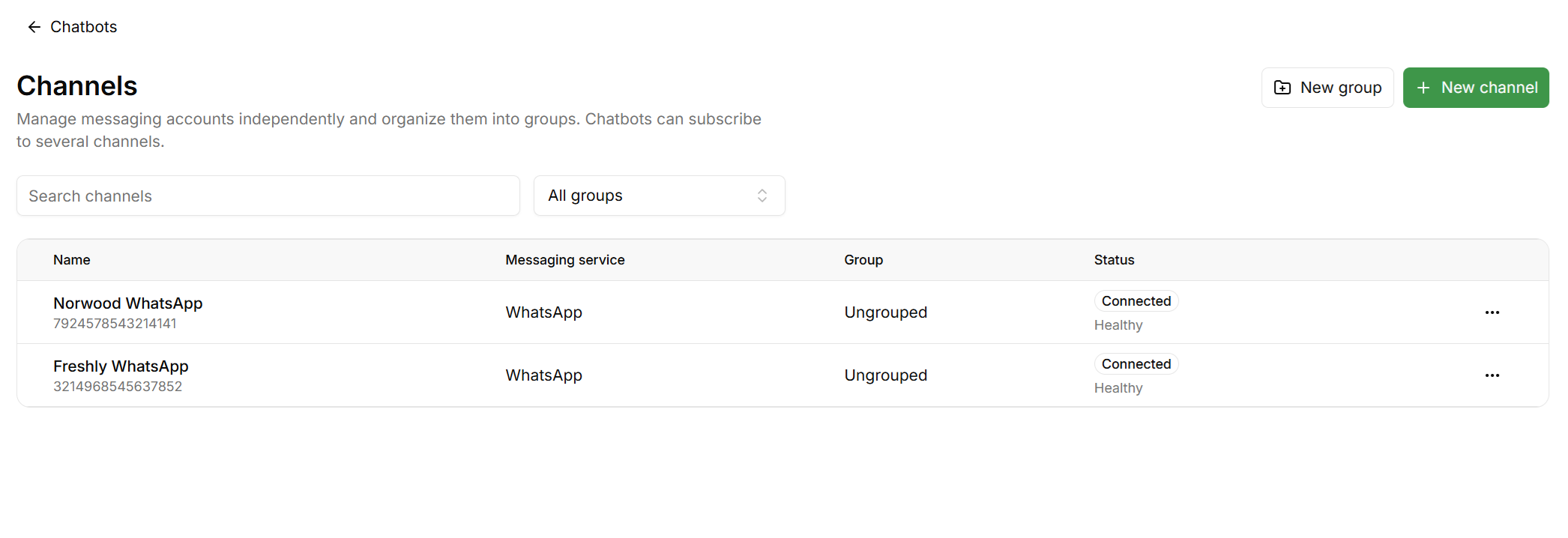
Go to AI Agent Management > Chatbots > Channels to create, connect and organize them. Creating and editing channels needs the Admin or Manager role in AI Chatbots.
Before you start
You need a WhatsApp Business number on the WhatsApp Business Platform (Cloud API) and access to its Meta Business account. From Meta, get:
- A Meta app with the WhatsApp product added. Note its App Secret (in the app's basic settings).
- A System User access token with access to your WhatsApp Business Account, and the
whatsapp_business_managementandwhatsapp_business_messagingpermissions. Some Business Manager setups also needbusiness_management. - Your WhatsApp Business Account ID and the Phone number ID of the number the chatbot will answer.
See Meta's WhatsApp Cloud API getting started guide for where to find each one. Keep the token and the App Secret in a safe place.
Connect a WhatsApp number
- In Channels, click New channel.
- Enter a Channel name, for example "Norwood WhatsApp", and choose WhatsApp as the Messaging service. Optionally, pick a Channel group.
- Under WhatsApp connection, select a connection, or choose Create a WhatsApp connection and fill in:
- System User Access Token
- Business Account ID
- App Secret
- Enter the WhatsApp Business Account ID and the Phone number ID.
- Click Save channel.
- Subscribe a chatbot to the channel and publish it. Publishing connects the channel: ElectroNeek checks the credentials and registers the webhook for this phone number with Meta, and the status changes to Connected. To connect it before that, open the channel's Actions menu and click Connect.
The Phone number ID can't be changed later. To use a different number, create a new channel.
If the number is already connected to another installation or tool, ElectroNeek won't replace its webhook. Disconnect it there first.
Organize channels in groups
Groups work like folders. They help partners who run chatbots for several clients keep each client's numbers together. Groups don't change who can see a channel or which chatbots listen to it.
- To create a group, click New group, enter a Group name and click Save group.
- To move a channel, open its Actions menu and choose Move to and the group.
- To rename or delete a group, use Manage group. Deleting a group leaves its channels ungrouped, with their subscriptions as they were.
Use the group filter and the search box to find a channel.
Subscriptions
A chatbot subscribes to channels in its Channel & Identity step. For each channel, the switch sets what happens to new messages:
- Listening: the chatbot answers them.
- Paused: the messages are still recorded in the Inbox, but the chatbot doesn't reply. When you switch back to Listening, it answers new messages only, not the ones that arrived while it was paused.
Only one published chatbot can listen to a channel at a time. Drafts and paused subscriptions don't count. If you try to publish or resume a second one, a message tells you which chatbot already answers that channel.
Channel actions
From a channel's Actions menu:
- Channel settings: change its name or group, and copy its Webhook URL.
- Validate credentials: check that the token and IDs still work.
- Disconnect: stop delivery for every chatbot subscribed to the channel. Conversation history is kept.
- Delete channel: only possible for channels with no subscriptions and no conversation history. To stop a channel and keep its history, disconnect it instead.
Update the access token
The WhatsApp token and App Secret live in the channel's WhatsApp connection. When they change, update that connection with the new values, then click Validate credentials on the channel to check that it works.
To point the channel at a different WhatsApp connection, Disconnect it first: a connected channel's credentials can't be changed. Then select the new connection, save and Connect again.
WhatsApp rules to keep in mind
- 24-hour window: WhatsApp lets businesses send free-form messages for 24 hours after the customer's last message. After that, only an approved template can restart the conversation.
- Message length: up to 4,096 characters per message. Longer AI replies are split.
- Groups: chatbots answer direct conversations. WhatsApp groups only work when created through Meta's Groups API on an eligible Official Business Account; existing groups from the WhatsApp app can't be connected.
- Message types: customers can send text, images, audio, video, documents, stickers, locations and contacts. All of them appear in the Inbox.
Troubleshooting
| Problem | What to check |
|---|---|
| Chatbots or Channels doesn't appear in the Portal | Your organization needs the AI Chatbots product and you need an AI Chatbots role. Sign out and back in after a role change. |
| Connect is disabled | Save your changes to the channel first. |
| Messages appear in the Inbox but the chatbot doesn't reply | Check that the chatbot is published, the channel is Listening, the conversation isn't taken over by a person, and the monthly message allowance isn't used up. |
| A message says another chatbot already answers the channel | Pause the channel in that chatbot first, then publish or resume this one. |
| Replies fail after 24 hours of silence | The WhatsApp window has closed. Use an approved template. |
| Validate credentials fails | The token may have expired or lost permissions. Follow Update the access token. |